You pay for your Amazon Music subscription, you click the "Download" button on your favorite playlist, and you connect your trusty MP3 player to your computer. But when you open your file explorer to drag and drop those songs, they are nowhere to be found. If you have ever felt this exact wave of frustration, you are not alone.
It is one of the most common tech headaches for music lovers. Despite paying for premium streaming access, getting those tracks onto a dedicated, offline listening device feels impossible. The truth is, streaming platforms intentionally design their apps to keep your music trapped inside their ecosystem. But what if you want to go for a run without a bulky smartphone? What if you want to enjoy a digital detox with your classic Sony Walkman or iPod?
Fortunately, there is a straightforward, permanent workaround. In this comprehensive guide, we will break down exactly why your transfers are failing, demystify the technical roadblocks, and show you exactly how to play Amazon Music on an MP3 player in just a few simple steps.
- Why Can’t You Directly Transfer Amazon Music to an MP3 Player?
- The Ultimate Solution: Convert Amazon Music to MP3
- Step-by-Step Guide: How to Play Amazon Music on MP3 Players
- How to Transfer Converted Amazon Music to Popular MP3 Players
- Why Use an MP3 Player Instead of a Smartphone in 2026?
- Troubleshooting Common Transfer Issues
- Frequently Asked Questions (FAQs)
Why Can’t You Directly Transfer Amazon Music to an MP3 Player?
To understand the solution, you first need to understand the invisible barriers Amazon places on your downloaded music. It is not a glitch with your computer or a broken cable; it is by design.
The Role of DRM (Digital Rights Management)
When you hit "Download" inside the Amazon Music app, you might assume you are downloading standard audio files (like MP3 or WAV) to your hard drive. In reality, you are downloading cached data files.
These files are heavily encrypted using Digital Rights Management (DRM) technology. DRM acts as a digital padlock. It ensures that the audio can only be decoded and played through the official Amazon Music application. Because your SanDisk, Sony Walkman, or generic MP3 player does not have the Amazon Music app installed on its operating system, it cannot read or play these encrypted cache files. To your MP3 player, an encrypted Amazon Music file looks like unreadable gibberish.
Amazon Prime vs. Amazon Music Unlimited Restrictions
Amazon offers two primary tiers of music streaming, but neither allows for traditional MP3 player transfers:
- Amazon Music Prime: Included with your Prime membership, this tier offers ad-free listening and offline playback, but it functions largely on a shuffle-only basis for most catalogs. Any offline downloads are strictly locked within the iOS, Android, or desktop app.
- Amazon Music Unlimited: This premium tier gives you on-demand access to HD and Ultra HD tracks. While the audio quality is vastly superior, the DRM restrictions remain exactly the same. You cannot export an Unlimited track to a local folder.
In both cases, you are essentially "renting" the offline playback capability. To truly own your offline experience, you need to strip away these restrictions.
The Ultimate Solution: Convert Amazon Music to MP3
Since you cannot drag and drop the encrypted cache files, the only way to play Amazon Music on an MP3 player is to convert the streaming audio into an open, DRM-free format like MP3, FLAC, or AAC.
Introducing TuneBoto Amazon Music Converter
To bridge the gap between your Amazon account and your MP3 player, you need a specialized tool. TuneBoto Amazon Music Converter is widely regarded as the industry standard for this exact task.
Unlike basic audio recorders that capture background noise and suffer from massive quality loss, TuneBoto directly parses the audio stream from Amazon. It legally and safely downloads your playlists and converts them into universally recognized audio files.
Amazon Music Converter
-
Download Amazon Music songs, albums, playlists & podcasts to local computer

-
Convert Amazon Music songs to FLAC, MP3, AAC, WAV, AIFF, ALAC
-
Keep ID3 tags and lyrics; 100% original audio quality up to Ultra HD & HD
-
10X download speed & batch download playlists/albums
-
Archive downloaded songs by album/artist/playlist
-
Handy tools: Format Converter, Tag Edit, Burn CD and Export to iTunes/Music



Why TuneBoto stands out:
- 100% Original Quality: It retains the HD and Ultra HD audio fidelity of Amazon Music Unlimited.
- Preserves ID3 Tags: It automatically keeps the metadata, meaning your MP3 player will correctly display the Song Title, Artist, Album, and Cover Art.
- 10X Conversion Speed: You can convert entire 50-song running playlists in a matter of minutes.
- Universal Compatibility: It outputs files in MP3, AAC, FLAC, WAV, AIFF, and ALAC, ensuring it works with literally every MP3 player on the market.
Step-by-Step Guide: How to Play Amazon Music on MP3 Players
Ready to liberate your library? Here is the core tutorial to get your music ready for any portable device.
- Step 1: Download & Install TuneBoto. Download the TuneBoto Amazon Music Converter for Windows or macOS. Install the software and launch it.
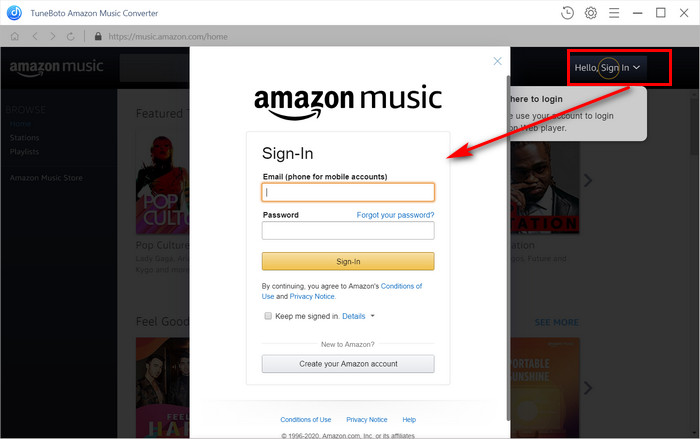
- Step 2: Sign in to your Amazon Account. TuneBoto features a built-in Amazon Music web player. Simply log in using your standard Amazon credentials. This secure login allows the software to access the playlists and albums you have saved to your library.
- Step 3: Customize Output Settings. Before converting, click the Settings gear icon in the corner. This is crucial for MP3 player compatibility.
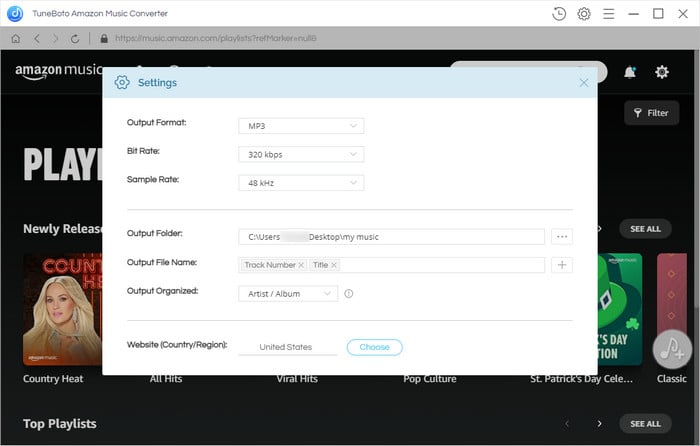
| Setting | Recommendation for MP3 Players | Why? |
|---|---|---|
| Output Format | MP3 | The most universally accepted format. Guaranteed to work on 100% of portable players. |
| Bit Rate | 320kbps | Delivers the highest possible audio quality for the MP3 format. |
| Output Folder | Desktop or Music Folder | Makes the files easy to find when it is time to drag and drop. |
*Note: If you have a high-end audiophile player (like an Astell&Kern), you may want to select FLAC as your output format to retain lossless Ultra HD quality.
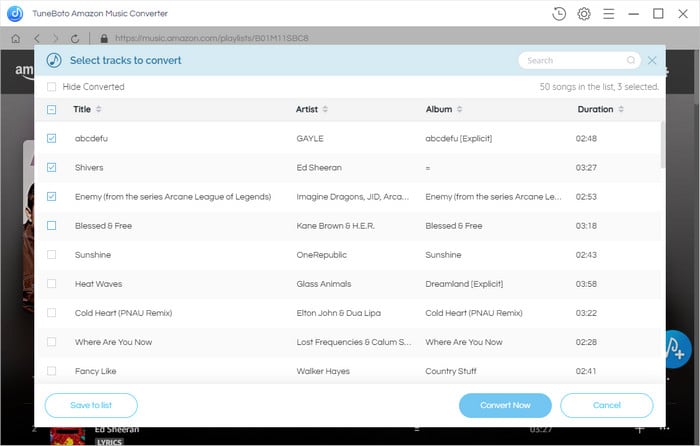
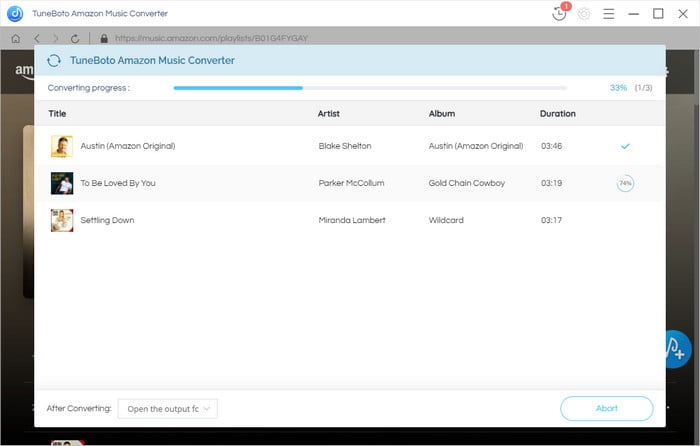
- Step 4: Select and Convert Your Amazon Playlists. Navigate to a playlist, album, or artist within the built-in web player. Click the blue Add to List button. Select the specific tracks you want, and hit Convert. TuneBoto will process the files and save them directly to your chosen output folder.
How to Transfer Converted Amazon Music to Popular MP3 Players
Now that you have clean, unencrypted MP3 files sitting on your computer, the final step is getting them onto your device. The process varies slightly depending on your brand of MP3 player.

Transferring to SanDisk Clip Sport / Jam
SanDisk makes some of the most popular, durable MP3 players for working out.
- Step1. Connect your SanDisk player to your PC or Mac using a micro-USB cable.
- Step2. It will appear as a removable drive (usually named "SPORT" or "SAN_DISK") in your File Explorer (Windows) or Finder (Mac).
- Step3. Double-click the drive to open it, and locate the "Music" folder.
- Step4. Highlight your newly converted TuneBoto MP3 files, and simply drag and drop them into the SanDisk Music folder.
- Step5. Safely eject the device.

Transferring to Sony Walkman
Sony Walkman devices are beloved by audiophiles for their superior digital-to-analog converters (DACs).
- Step 1. Connect the Walkman via its proprietary USB cable or standard USB-C.
- Step 2. On the Walkman screen, ensure you select File Transfer mode if prompted.
- Step 3. Open the "WALKMAN" drive on your computer.
- Step 4. Drag and drop your converted music into the folder labeled "MUSIC".
- (Optional) You can also use Sony's official "Music Center for PC" software to sync the files, but a direct drag-and-drop is generally faster.

Transferring to Apple iPod (Nano / Shuffle / Classic) via iTunes
Apple devices require a middleman to manage files.
- Step 1. Open the Apple Music app (on macOS Catalina and later) or iTunes (on Windows or older Macs).
- Step 2. Go to File > Add to Library... (or Add File to Library) and select your converted Amazon Music folder.
- Step 3. Once the songs are in your iTunes/Apple Music library, connect your iPod via USB.
- Step 4. Click the device icon, navigate to the Music tab, check the box to Sync Music, and select your imported Amazon playlists.
- Step 5. Click Apply or Sync at the bottom right.
Transferring to Generic USB MP3 Players
For unbranded or generic MP3 players bought on Amazon, the process is incredibly straightforward.
- Step1. Plug the MP3 player into your USB port.
- Step2. Wait for your computer to recognize it as a standard "USB Mass Storage Device."
- Step3. Open the drive, create a new folder titled "Amazon Music," and drag your MP3s inside.
- Step4. Eject the USB safely before unplugging.
Why Use an MP3 Player Instead of a Smartphone in 2026?
With smartphones boasting massive storage capacities, you might wonder why people are returning to standalone MP3 players. The resurgence is actually driven by several modern needs:
- The Digital Detox: Constant notifications, emails, and social media alerts ruin the immersive experience of listening to music. An MP3 player offers a distraction-free audio sanctuary.
- Battery Preservation: Streaming high-quality audio via 5G drains smartphone batteries rapidly. Using a dedicated device saves your phone's battery for emergencies and navigation.
- Athletic Convenience: Modern smartphones are heavy and unwieldy. A 1-ounce SanDisk player clipped to your shorts is vastly superior for running, lifting, or cycling.
- Audiophile Hardware: Premium players feature advanced DACs and amplifiers that smartphones simply do not possess, allowing high-fidelity FLAC files to sound incredibly rich and detailed.
Troubleshooting Common Transfer Issues
Even with a perfect conversion, hardware communication can sometimes be finicky. Here are the most common transfer roadblocks and how to fix them:
1. My Mac doesn't recognize my MP3 player.
Unlike Windows, macOS does not natively support the MTP (Media Transfer Protocol) used by many modern MP3 players. If your device doesn't show up in Finder, you need to download a free bridging app like Android File Transfer or Commander One. Once installed, the app will read the MP3 player and allow you to drop files into it.
2. The album art is missing on my player's screen.
TuneBoto embeds ID3 tags perfectly, but some older MP3 players have strict limitations on image sizes. Ensure that your output settings aren't embedding massive 4K album covers. Alternatively, placing a small image file named folder.jpg inside the music folder on your MP3 player will often force the device to display the artwork.
3. The songs skip or display a "Format Not Supported" error.
This usually happens if you converted the music to FLAC or ALAC, but your specific MP3 player only supports basic formats. Check your device's manual. If it does not support high-res audio, run the files through TuneBoto again and ensure the output is set strictly to MP3 at 256kbps or 320kbps.
Frequently Asked Questions (FAQs)
Is it legal to convert Amazon Music to MP3 for my personal MP3 player?
Yes, under fair use doctrines in most regions, format-shifting legally acquired media for personal, offline playback on your own private devices is perfectly acceptable. TuneBoto is designed strictly for personal use, not for commercial distribution or piracy.
Will I lose audio quality when converting?
If you choose the MP3 format, there is technically a slight compression, but at 320kbps, it is virtually indistinguishable to the human ear. If you have an Amazon Music Unlimited account and an audiophile MP3 player, select the FLAC output in TuneBoto to retain 100% lossless, bit-perfect quality.
Do I need to keep my Amazon Music subscription?
You need an active Amazon Prime or Music Unlimited account to access and convert the music using TuneBoto initially. However, once the music is converted into local MP3 files and transferred to your MP3 player, those files are yours to keep. They will not disappear or lock up if your subscription eventually expires.
Conclusion
The restrictive DRM ecosystems of modern streaming platforms shouldn't dictate how and where you listen to your favorite artists. While you cannot directly transfer downloaded files from the Amazon app to a portable device, TuneBoto Amazon Music Converter provides a seamless, high-quality bridge.
By taking a few minutes to convert your library to open MP3 formats, you can revive your iPod, take your SanDisk on a marathon, or enjoy a distraction-free digital detox with your Sony Walkman. Download TuneBoto today, reclaim your music, and start building the ultimate offline library for your MP3 player.
100% Safe & Secure | 30-Day Money-Back Guarantee

Ethan Cole | Senior Editor
Related article:
Top 10 K-pop Songs 2025 & 15 Best K-pop Sites in MP3
How to Download Amazon Prime Music Song to MP3
How to Download WAV Files from Amazon Music
How to Set Amazon Music as Ringtone
Best Way to Enjoy Amazon Music Song on Kindle Fire